Loading articles…
Loading articles…
Act on Pulse alerts
Updated
Pulse watches your reservations, deposits, chats, guest emails, payments and door, and lists what needs someone. Each alert clears on its own once the problem is fixed, wherever you fix it.
What Pulse looks for
| Alert | When it appears |
|---|---|
| Table request awaiting response | A request has had no answer for 10 minutes |
| Deposit viewed but unpaid | A guest opened a deposit request 30 minutes ago and has not paid |
| Deposit unpaid before the event | The event starts within 4 hours and the deposit is still unpaid |
| Guest waiting for a reply | A guest message has had no answer for 10 minutes |
| Guests arrived, not seated | A party was marked arrived 15 minutes ago and is not seated |
| Event starts soon with reservations open | The event starts within 2 hours with requests or deposits still open |
| Door scanner stopped checking in | A phone with the scanner open has gone quiet for 5 minutes |
| A guest email bounced or failed | A ticket confirmation, table email or deposit email did not reach the guest |
| Payments, guest emails or guest chat failing | Several attempts in a row have failed |
Deposit alerts show the amount you asked for.
Read your venue's pulse
On the Events page, click Pulse at the left of the bar at the bottom of the calendar. The top says how many things need you. Beside Live, a small heartbeat beats calmly in your theme's colour, quickens in amber when someone has to act, and runs fast in red when something has stopped. Below it is one tile for each part of the venue, with how many things wait there and the oldest wait: Reservations, Deposits, Guest chats, Door, Guest emails and Services. A calm tile shows a check. Reservations also holds events about to start with requests or deposits still open.
Tap a tile to open that area. The tabs at the top show what is Open, what is Snoozed (when anything is) and what was Settled today.
Work through your alerts
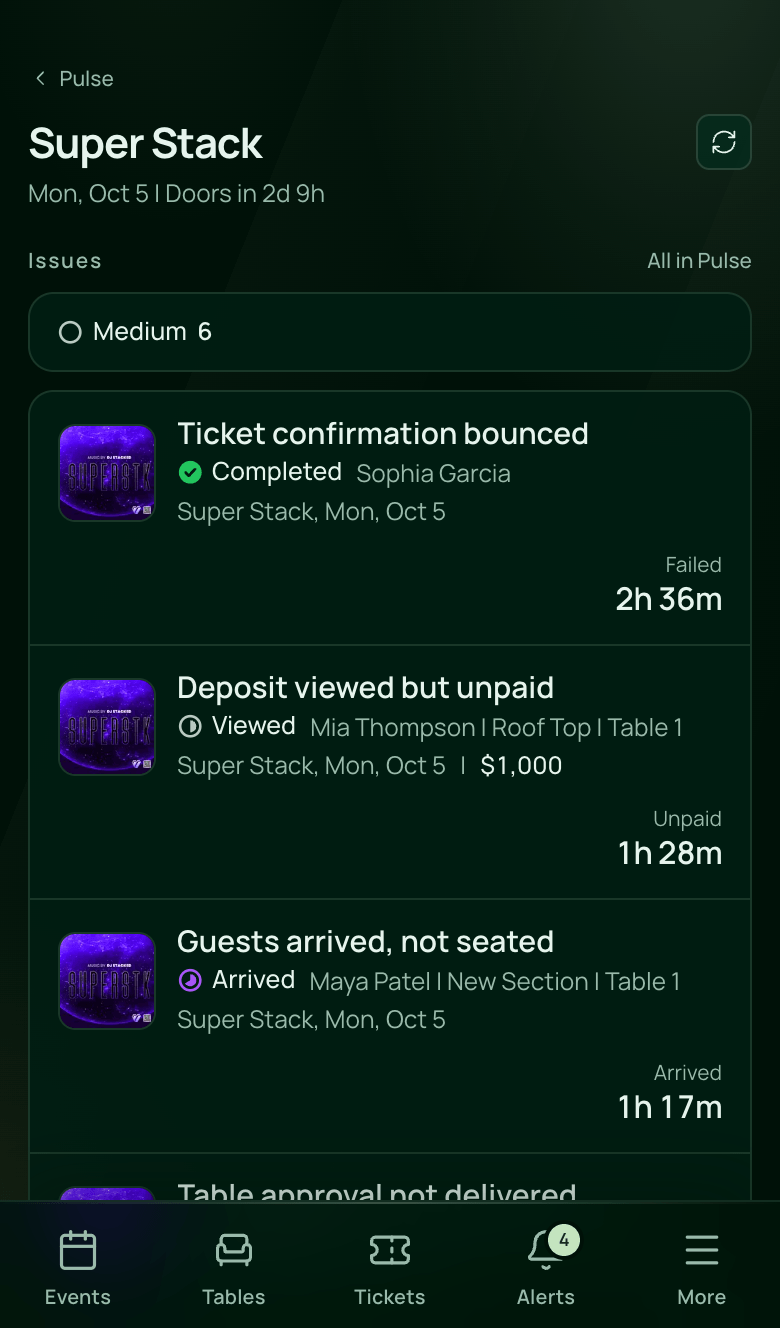
- Tap a tile that isn't calm. Each alert shows the event's image, the guest and table, where the reservation, deposit or order stands now, and how long it has waited. When an area has more than one kind of alert, each kind has its own group with its count, such as Table requests awaiting a response.
- Use the button on an alert to act: Review a table request, Seat a party, Remind a guest about a deposit, Open chat, or Resend an email. Review opens the request on the Tables page, beside the floor plan, where you approve or decline it.
- Use More (the three dots) to Snooze an alert, open its reservation, or Dismiss it. Pulse asks before it dismisses anything.
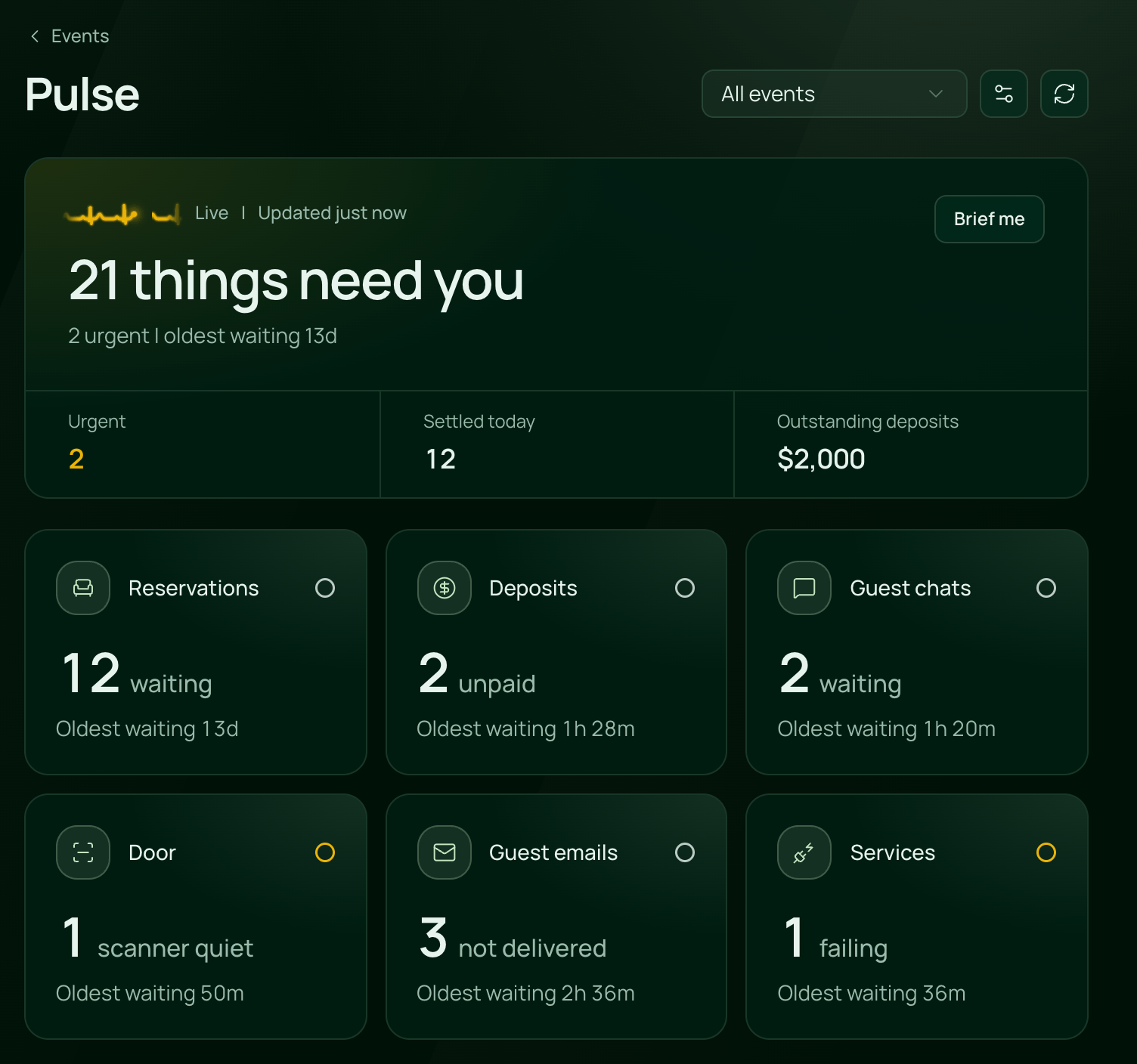
Brief me, at the top, sums up what needs attention in a few sentences.
Remind a guest about a deposit
Remind on a deposit alert shows how long the payment link has left, then lets you choose:
- Remind them: the same link and deadline, in a reminder email.
- Give more time: the same link, due 24, 48 or 72 hours from now.
- Send a new request: a new link with its own deadline. The old link stops working.
When the link has already run out, only a new request is offered. Pulse tells you if the new deadline falls after the event starts. You can change the address before you send. After a reminder, Pulse snoozes the alert for 4 hours, or 1 hour when the link runs out sooner, so you don't remind the guest twice.
Resend a guest email
Resend works on every guest email Pulse watches: ticket confirmations, table requests received, table approvals and confirmations, deposit requests and deposit receipts. Send it to the same address, or choose Another address when the first one was wrong, which is usually why an email bounces. The reservation's own address doesn't change. A deposit request is resent with the same link, while it is still open.
Run the night from Live view
On Pulse, choose the event in the event filter, then click Live view. The filter always lists the event that is on now or next, as well as events with alerts. An event with alerts also shows Pulse and their count beside its date. Live view shows tickets scanned, tables arrived and seated, each door phone, and what needs attention, updating as it happens.
Change the rules
- Open Pulse and click the settings button beside the event filter.
- Turn an alert off, or choose how long Pulse waits before it speaks up.
- Under Push to phones, choose which alerts reach phones: Critical only, Critical and high, or Off.
Each person also turns Pulse on or off for their own phone in Notifications.
Good to know
- You see only alerts about records your role can already open. Assigned Only access sees arrivals at its own tables, and deposit alerts need the role's Show money switch.
- A chat someone has joined shows only to them and the owner.
- A delivery that is only delayed is not an alert. Pulse waits for a definite failure.
- Dismissing an alert hides it while the problem lasts. If the same problem comes back later, Pulse raises it again. A dismissed alert stays under Settled today, with Reopen while its problem lasts.
 VenueStack on your phoneRun your venue from your pocket.How to install